Face · blur
BeforeAfter
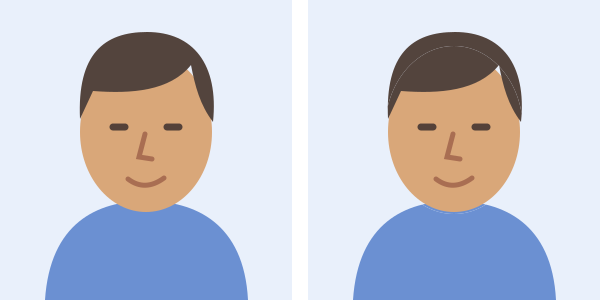
Softens facial detail while keeping the surrounding photo. Check every face: light blur may leave someone recognizable.
 PicMenderFree Online Image Tools
ONLINE IMAGE TOOLS
Find faces automatically or mark details with movable rectangles and circles. Adjust each area’s blur, pixelation or solid cover in the live preview, add a gentle outward edge, and check every face before downloading.
JPG, PNG or WebP · Up to 15 MB · 16 megapixels
Choose a tool to start editing.
Drop a photo here, or choose a file from your device.
JPG, PNG or WebP · Up to 15 MB · 16 megapixels
These original illustrations compare three common uses. They are diagrams, not photographs exported from the editor. PicMender edits still photos only.
Softens facial detail while keeping the surrounding photo. Check every face: light blur may leave someone recognizable.
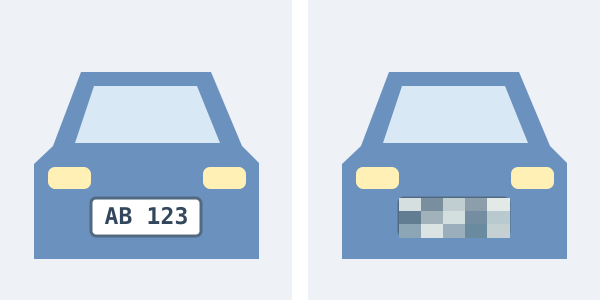
Breaks the selected detail into blocks. Draw a manual rectangle over the whole plate and check the exported image.
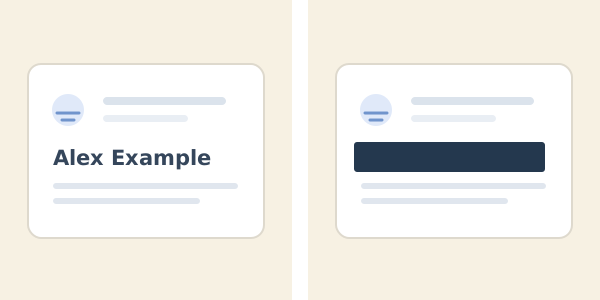
Replaces pixels inside the selected area with an opaque colour. Useful when the letters themselves should no longer be visible.
These examples show manually selected areas in PicMender, from a face in a photo to contact details in a screenshot.
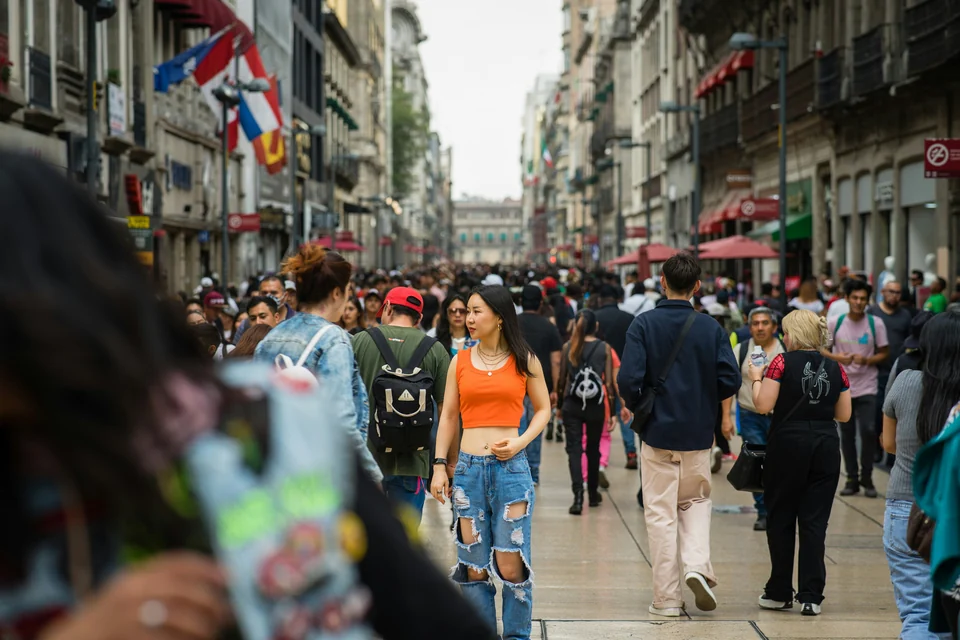
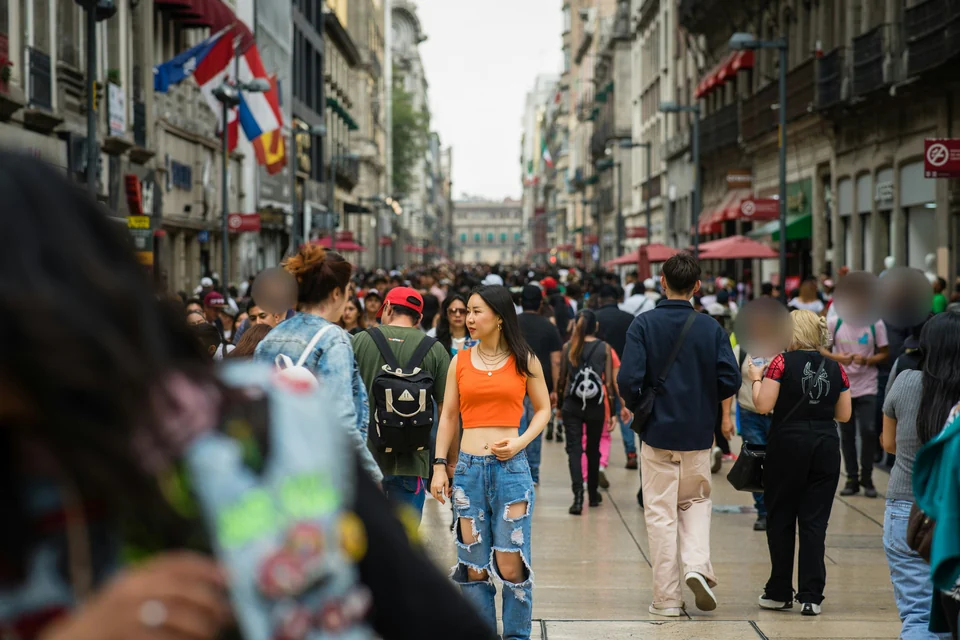
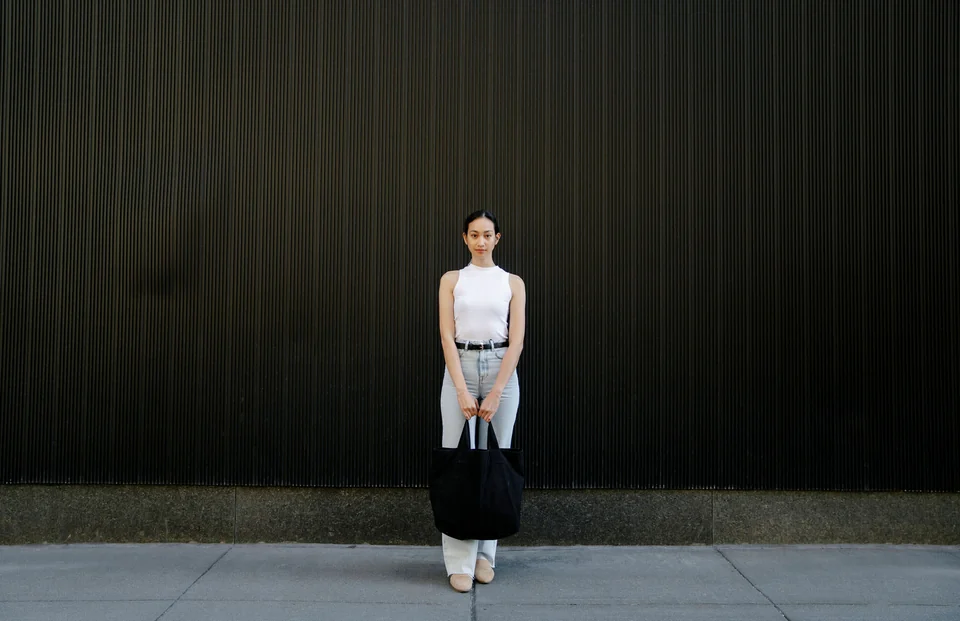
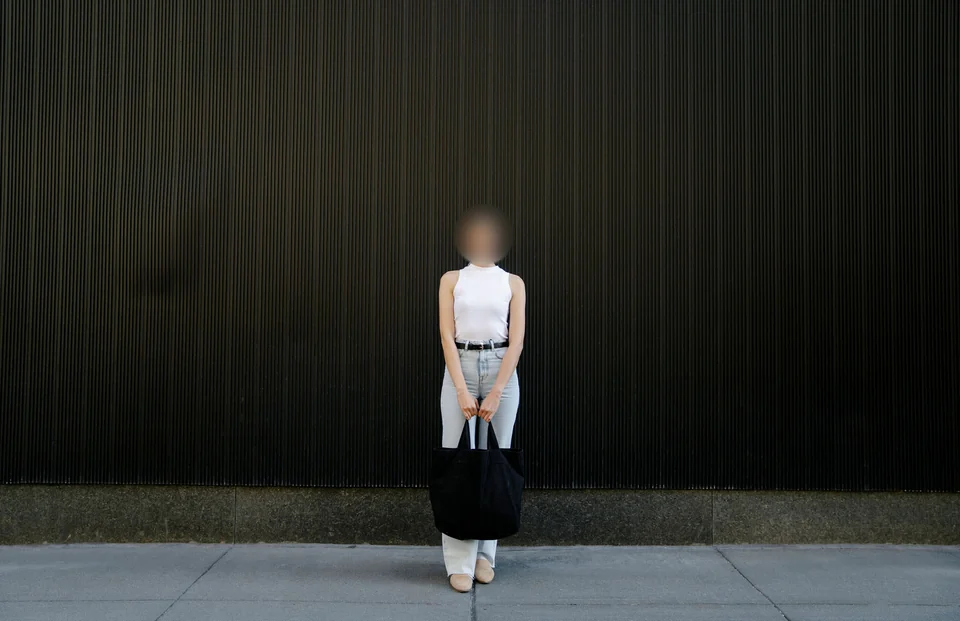
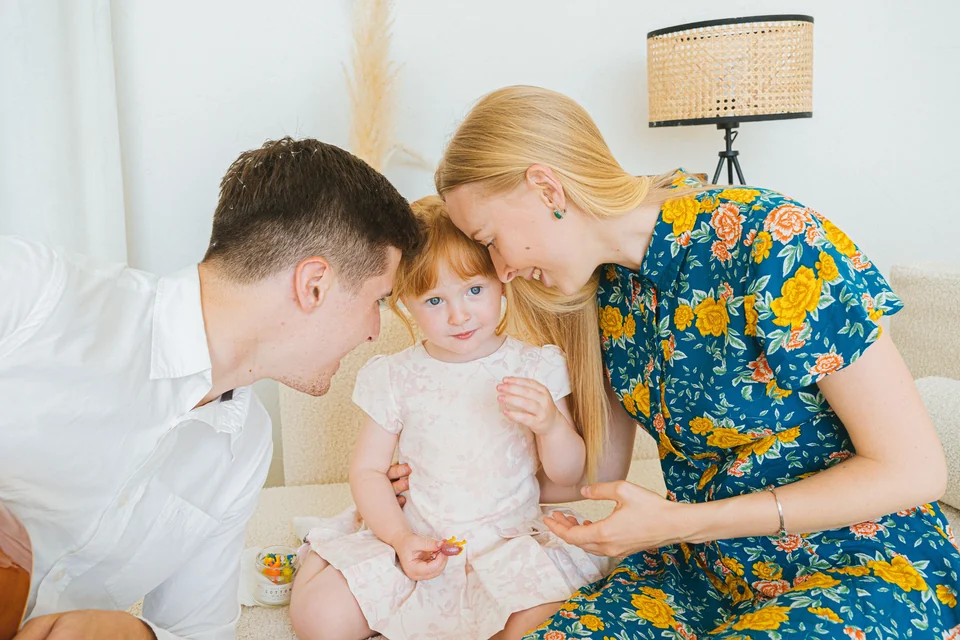
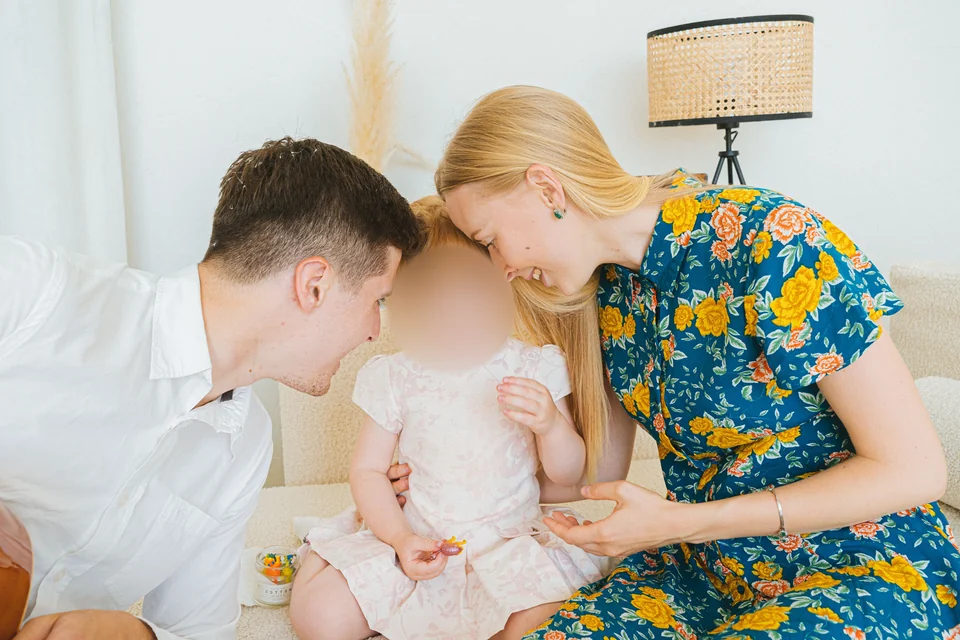
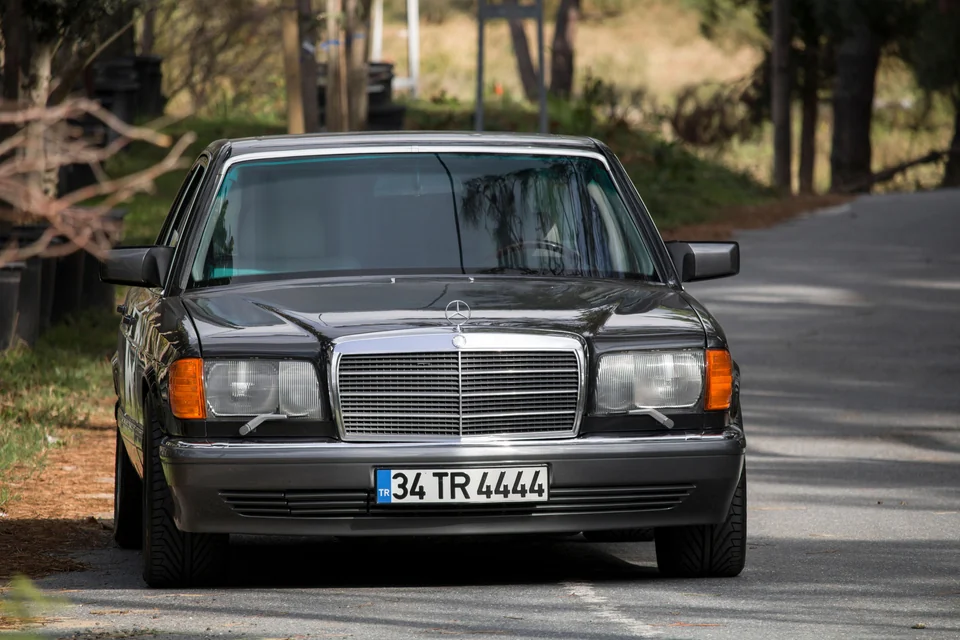
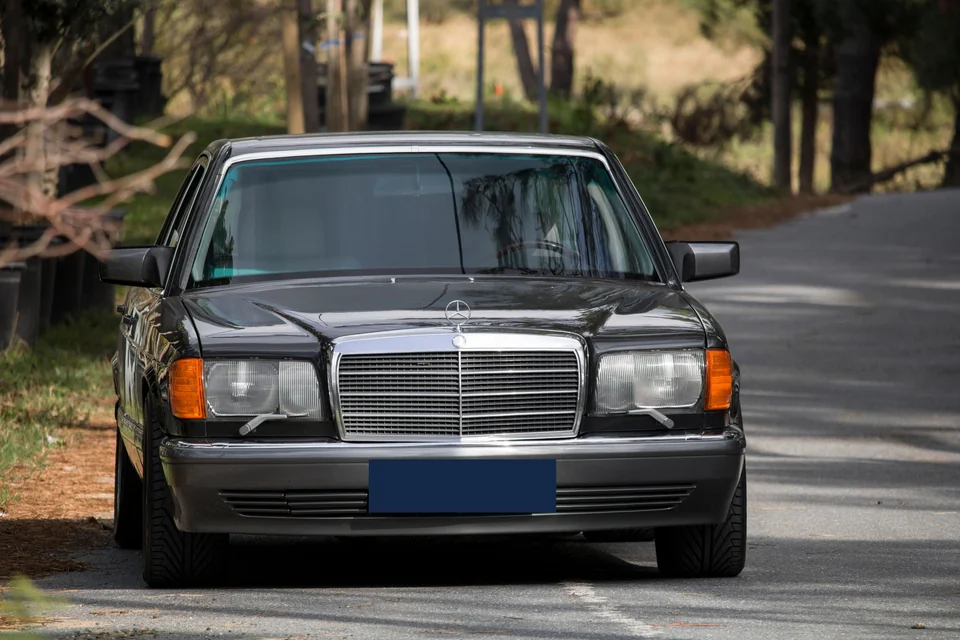
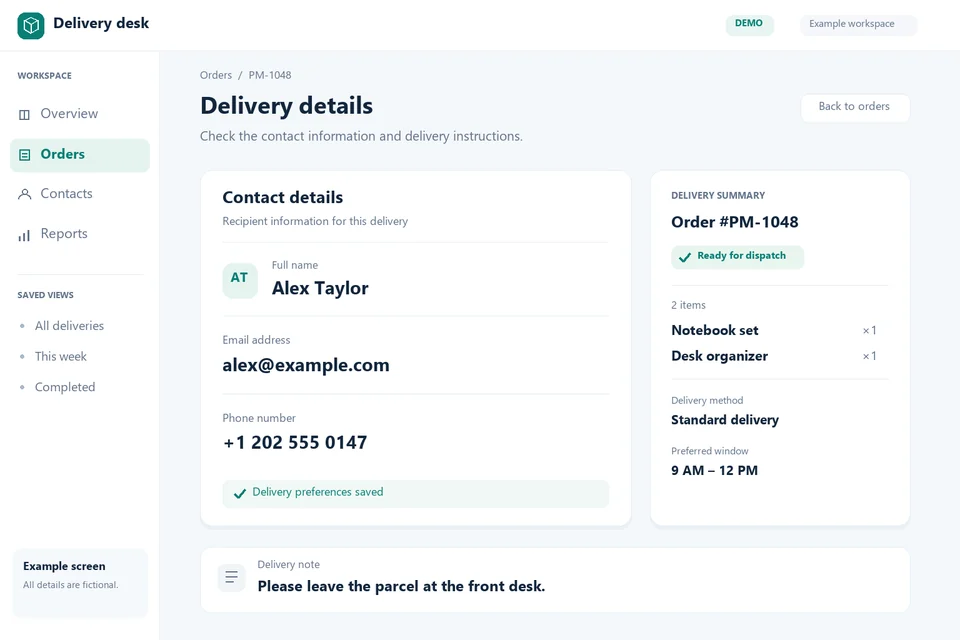
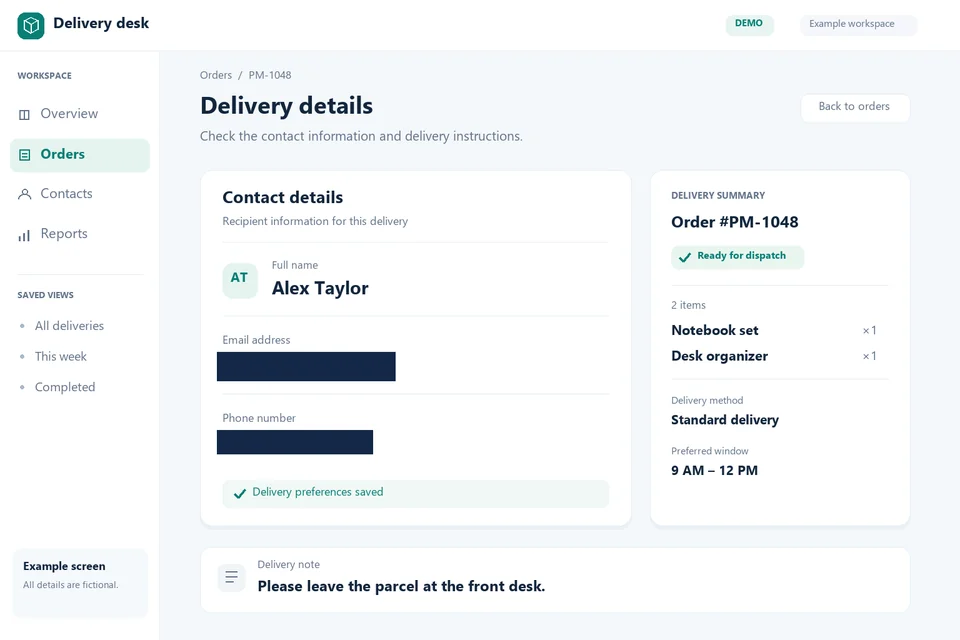
Sample screenshot with fictional contact details.
Check the downloaded image at full size before sharing. Hiding a face alone does not guarantee anonymity.
Example: To hide a face, find faces automatically or draw a rectangle or circle, then check that it covers the entire face. For a name on a document, draw a separate area and choose a solid cover.
Choose your settings: Each area has its own effect and settings. Move or resize it after selection. Blur softens detail, pixelation makes blocks and solid cover replaces the covered pixels; Soft edge fades only just outside the selected core.
If the result is unexpected: Detection can miss faces or select non-faces. Remove incorrect areas and add missing ones manually. Inspect the downloaded photo at full size, including reflections and identifying details. Blur alone does not guarantee anonymity; this tool does not process videos.
Use Find faces automatically to suggest editable areas. Detection may miss profiles, small or partly covered faces, or select a non-face. Check every proposal and add or correct areas manually.
No. Missed areas, weak blur or partial coverage can leave a person recognizable. Inspect the downloaded image and use solid cover for details that need complete pixel coverage. Selection guides are not exported.
The selected core keeps the full chosen effect. A narrow band outside its edge gradually fades the effect back to the original image. Set Soft edge to zero for a hard boundary.
Advertisement
Use the tools in your browser without installing an app or creating an account.
Open an image from your device and move between tools in the same editor.
See the image as you edit. Undo the last changes, or start again from the original.
Choose a format and download the result. The original file remains on your device.
File limits, export quality and local processing.
No. The editor reads the image you select and processes it locally in your browser. We do not receive or store your image.
Static JPG, PNG and WebP images up to 15 MB and 16 megapixels, with no side longer than 8,192 pixels. GIF, HEIC, SVG, RAW and animated images are not supported.
JPG and WebP compression can remove detail. Compare the prepared result before downloading. PNG export is lossless for the edited pixels, but the file can be larger than the original.
Yes. Use Find faces automatically to suggest areas, then check and adjust them. Detection can miss faces or select the wrong area. Manual rectangles and circles remain available, and edits are included in the downloaded image.
The editor creates a new image from pixels; original camera metadata, colour profiles and print resolution are not retained as an editing feature. Colours and fine detail may differ from the original.