
WebP to JPG
Open your static WebP, choose JPG in the download bar, then adjust quality. Download the copy for an app or form that accepts JPG. Transparent areas become white.
 PicMenderFree Online Image Tools
ONLINE IMAGE TOOLS
Choose a format that suits your image and where you plan to use it. Adjust JPG or WebP quality and inspect the prepared result instead of relying on a promised compression ratio.
JPG, PNG or WebP · Up to 15 MB · 16 megapixels
Choose a tool to start editing.
Drop a photo here, or choose a file from your device.
JPG, PNG or WebP · Up to 15 MB · 16 megapixels
The same editor handles all three workflows. Changing a filename extension does not convert an image: choose an output format so the browser encodes a new file.
Open your static WebP, choose JPG in the download bar, then adjust quality. Download the copy for an app or form that accepts JPG. Transparent areas become white.
Open your JPG and choose WebP. Try a quality setting and use More settings → Prepare result to inspect the actual size. Compare fine details before saving; a smaller file is not guaranteed.
Open the PNG and choose JPG. This can suit a photo that does not need transparency. Transparent areas become white, and sharp text may show compression artefacts. Keep PNG or WebP when transparency matters.
The examples below show images before and after editing in PicMender.
Export the same photo in another format and compare the actual file sizes.
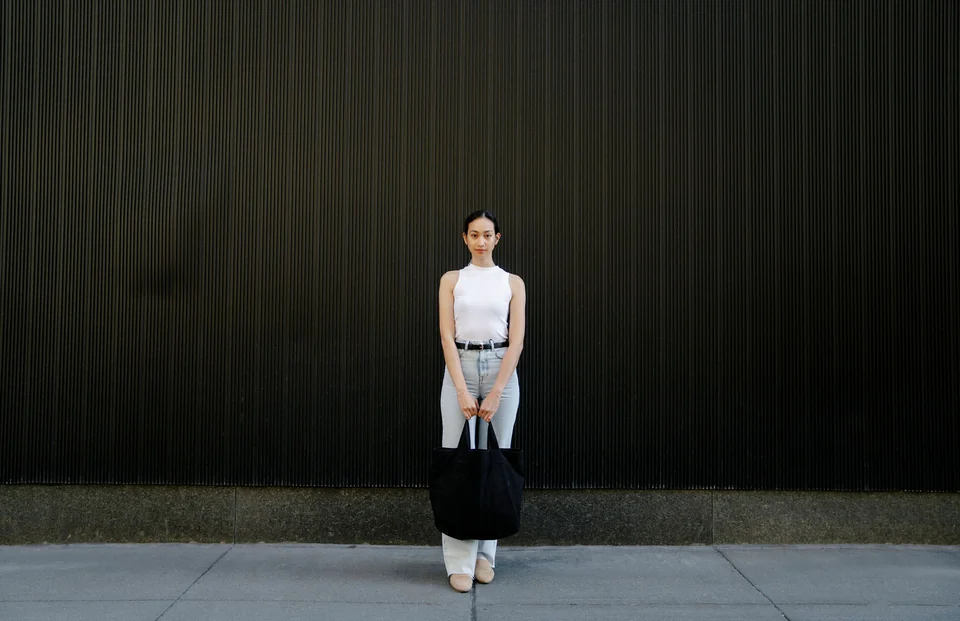
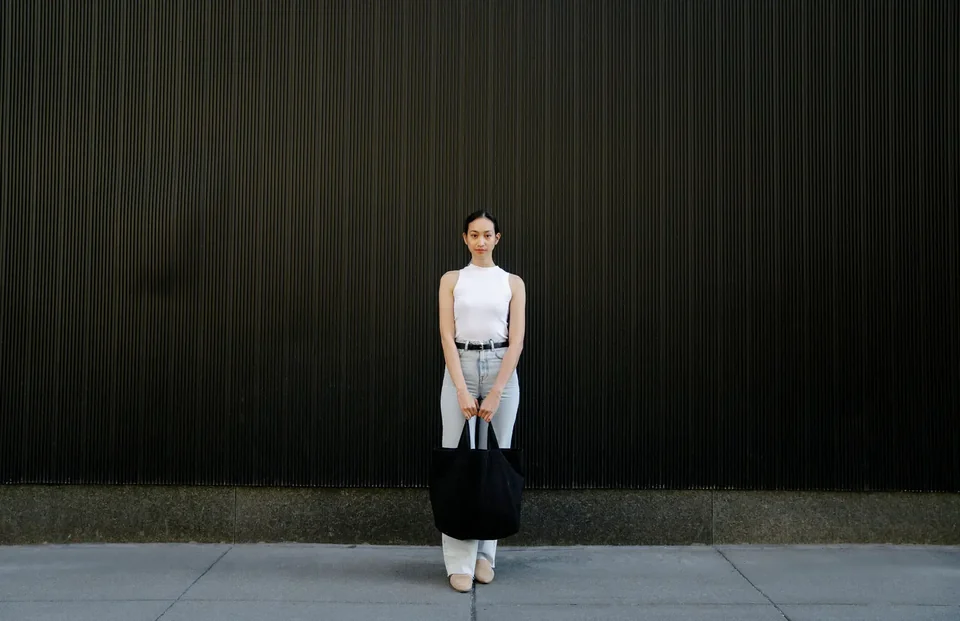
707,365 B → 96,432 B. JPG → WEBP.
A different format does not always produce a smaller file.
Example: For a transparent logo, export PNG or WebP. Choosing JPG instead fills transparent areas with white. For an ordinary photo, compare JPG and WebP at the same dimensions before choosing the smaller acceptable result.
Choose your settings: JPG and WebP offer quality settings; PNG does not use that slider. Prepare the result in More settings to inspect its actual file size, then review fine text and edges in the preview.
If the result is unexpected: A converted file can be larger than the original. Lower JPG or WebP quality, or reduce the pixel dimensions if appropriate. Saving a low-quality JPG as PNG cannot restore detail already lost.
PNG and WebP keep transparent pixels. JPG replaces transparent areas with a white background.
No. Size depends on the source, edits, format and quality. The editor reports actual bytes; PNG can be larger, and lossy compression can remove detail.
Advertisement
Use the tools in your browser without installing an app or creating an account.
Open an image from your device and move between tools in the same editor.
See the image as you edit. Undo the last changes, or start again from the original.
Choose a format and download the result. The original file remains on your device.
File limits, export quality and local processing.
No. The editor reads the image you select and processes it locally in your browser. We do not receive or store your image.
Static JPG, PNG and WebP images up to 15 MB and 16 megapixels, with no side longer than 8,192 pixels. GIF, HEIC, SVG, RAW and animated images are not supported.
JPG and WebP compression can remove detail. Compare the prepared result before downloading. PNG export is lossless for the edited pixels, but the file can be larger than the original.
Yes. Use Find faces automatically to suggest areas, then check and adjust them. Detection can miss faces or select the wrong area. Manual rectangles and circles remain available, and edits are included in the downloaded image.
The editor creates a new image from pixels; original camera metadata, colour profiles and print resolution are not retained as an editing feature. Colours and fine detail may differ from the original.